
If you’re planning to move from ManageEngine OpManager to the Progress WhatsUp Gold solution, this guide outlines key differences, recommended migration steps, and practical checks to help you transition with minimal disruption. It also includes an example script you can use to start monitoring imported devices in the WhatsUp Gold solution.
Why Organizations Consider Migrating
OpManager and the WhatsUp Gold solution both offer strong network monitoring capabilities, but their philosophies differ:
- OpManager emphasizes device templates, business views and unified monitoring addons like NetFlow and NCM. It automatically assigns device types and performance monitors based on device templates.
- WhatsUp Gold features a customizable, dashboard-driven interface. Device Templates help determine assigned monitors and displayed attributes and the platform supports straightforward escalation workflows.
If your team needs more flexible dashboards, easier escalation workflows or more intuitive visualizations, WhatsUp Gold network monitoring is a natural fit.
Understanding Core Concept Differences
Before migrating, map OpManager concepts to WhatsUp Gold equivalents. For more information, refer to YouTube videos or online documentation. Consider WhatsUp Gold training to complete all tasks successfully.
Device Classification
OpManager: Device Templates classify devices via SysOID/CLI identifiers and attach monitors with thresholds.
WhatsUp Gold: Device Roles classify devices based on discovered attributes and assign monitors accordingly. Roles can be manually adjusted per device.
Migration Tip: Review OpManager’s template-based thresholds and translate them into the role-based WhatsUp Gold Performance Monitors + Alert Center workflows.
Alerting and Notifications
OpManager: Notification Profiles define what notifications to send for which criteria (e.g., device down, URL down, thresholds).
WhatsUp Gold: Actions and Action Policies create escalation chains and notifications triggered by monitor state changes.
Key difference: In WhatsUp Gold, state-based events use Action Policies, while performance thresholds use Alert Center Notification Policies located at Alert Center Libraries.
Topology/Map Views
OpManager: Business Views visualize service dependencies and allow link status via SNMP/NetFlow.
WhatsUp Gold: Map View & Custom Maps allow dynamic topology visualization with device icons, annotations and indicators for monitor states. You can customize the topology as well as use custom map and overlay.
Dashboards/Wallboards
OpManager: Availability dashboards per Business View.
WhatsUp Gold: Fully customizable dashboards + NOC Viewer slide decks for rotating full screen views.
Terminology map
| OpManager term | WhatsUp Gold term | What it means / where you find it? |
|---|---|---|
| Device Template | Device Template | The WhatsUp Gold solution assigns each discovered device template and a primary role + sub‑roles that determine default monitors/attributes and map filters; you can change the role later. |
| Device Credentials | Credentials Library | The WhatsUp Gold solution applies credentials at discovery/rescan using the Credentials Library (SNMP, Windows, SSH, VMware, cloud, Redfish, etc.). |
| Interface Templates | Active monitors (device/port up/down) & Alert Center thresholds (perf) | In the WhatsUp Gold solution, up/down (status) is tracked by Active Monitors; performance thresholding (e.g., utilization) is configured via Alert Center for Performance Monitors. |
| Alarms | State changes / Alerts | In the WhatsUp Gold solution, devices/monitors generate state changes that drive alerting actions and notifications. |
| Notification Profiles | Actions & Action Policies | In the WhatsUp Gold solution, Actions (email/SMSs/script/etc.) are grouped and sequenced via Action Policies (easy escalations/blackouts) and can be applied to devices or monitors. |
| Business Views | Map View / Custom Maps | Map View shows device groups/topology, with customizable icons/annotations and link/monitor indicators. |
| Dashboards (built‑in widgets per view) | Dashboards & NOC Viewer | The WhatsUp Gold solution has customizable Dashboards and a NOC Viewer that rotates slides/decks for wallboards; can share via URL. |
| NetFlow Analyzer (add‑on integrated into OpManager) | Network Traffic Analysis (NTA+) | WhatsUp Gold exposes NTA+ reports and widgets as part of dashboards. |
| Discovery (IP ranges/seed router/AD/VMware; rule engine) | Discover → New Scan (scope, expand to virtualization/wireless; device roles) | WhatsUp Gold discovery defines scope/limits, uses credentials, and leverages Device Roles to auto attach monitors. |
| Thresholds live in Device/Interface Templates and/or are evaluated via Notification Profile criteria (“Threshold rule is violated”). | Split model: Active Monitors → Actions/Action Policies (state change), Performance Monitors → Alert Center notifications/policies (threshold breaches). | This is the biggest conceptual difference when mapping configurations. |
| IPAM (IP Address Manager) | (External Tool Needed) | WhatsUp Gold does not provide native IPAM. Microsoft IPAM is a popular choice with our customers, Netbox is another. |
Step-by-Step Migration Strategy
Prerequisites: Confirm you have OpManager admin access for exports, WhatsUp Gold admin access to create credentials/roles/policies and a defined discovery scope (IP ranges/seed devices/AD sources).
Step 1 — Audit Your Current OpManager Deployment
Document the following:
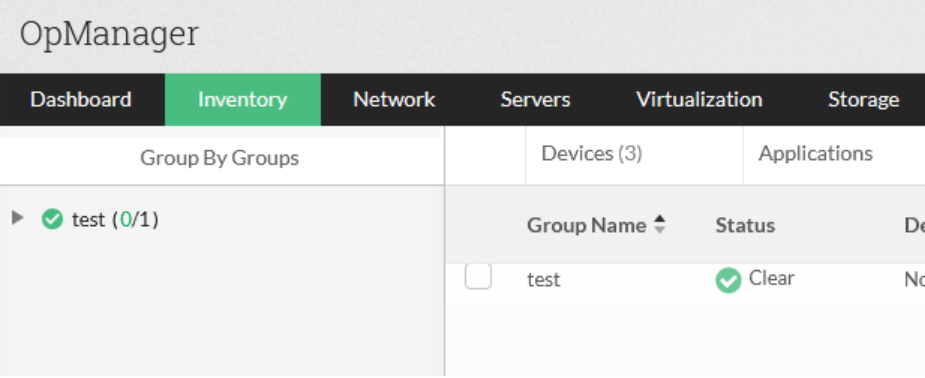
- Device groups & templates (Inventory -> Groups)
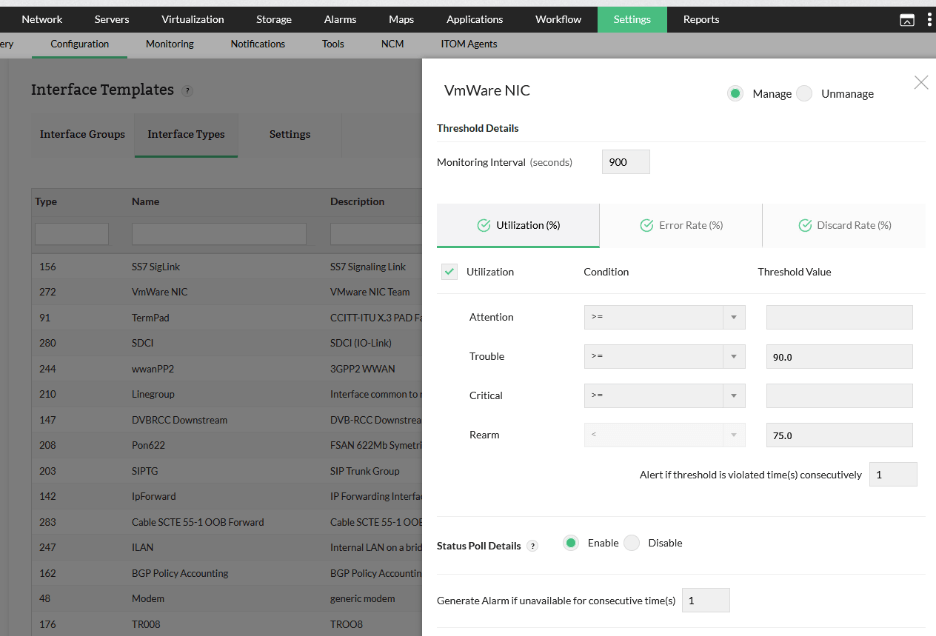
- Interface template thresholds (Settings -> Configuration -> Interface Templates). Look here only for the used one just to make sure you have this backed up.
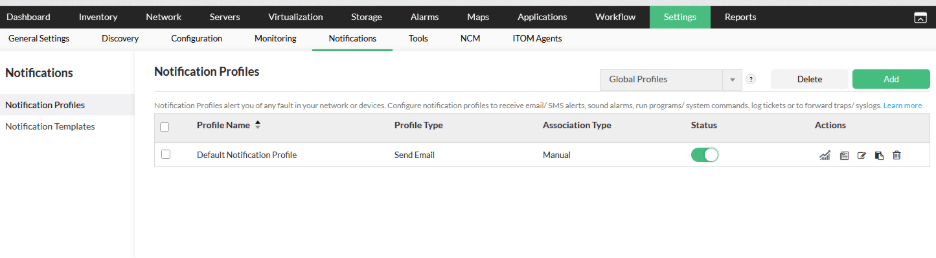
Notification Profiles (Settings -> Notifications)
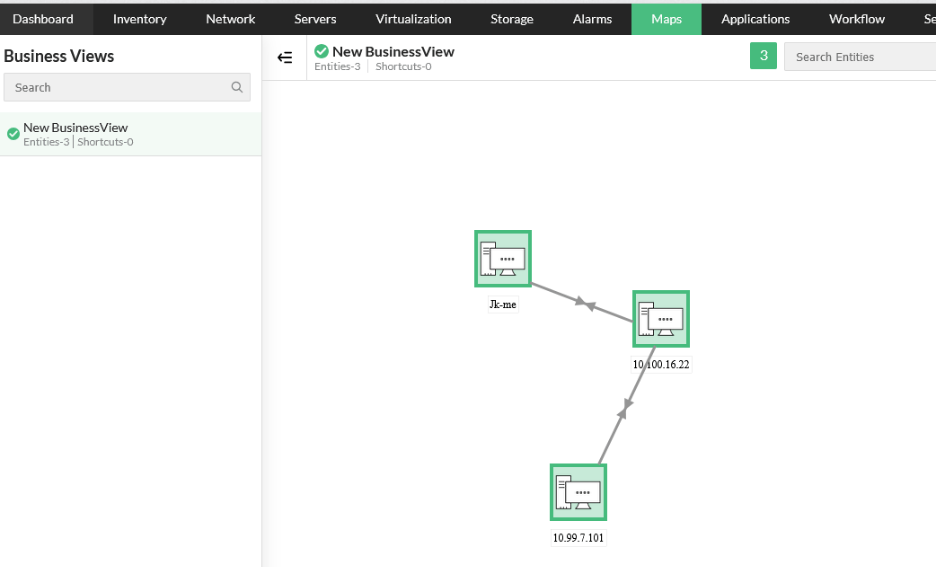
Business Views (Maps -> Business Views)
Addons (NetFlow, NCM, VMWare, WLC, etc.) (Go through the respective pieces in Settings)
This audit helps you map features directly into WhatsUp Gold equivalents.
Step 2 — Align Performance Metrics and Thresholds
OpManager’s method:
- Export or record the Device Templates in use (Settings -> Configuration -> Device Templates), including monitors, configurations and thresholds.
- For each high-value template (for example, Linux), list the monitors it applies so you can recreate equivalent coverage in the WhatsUp Gold platform.
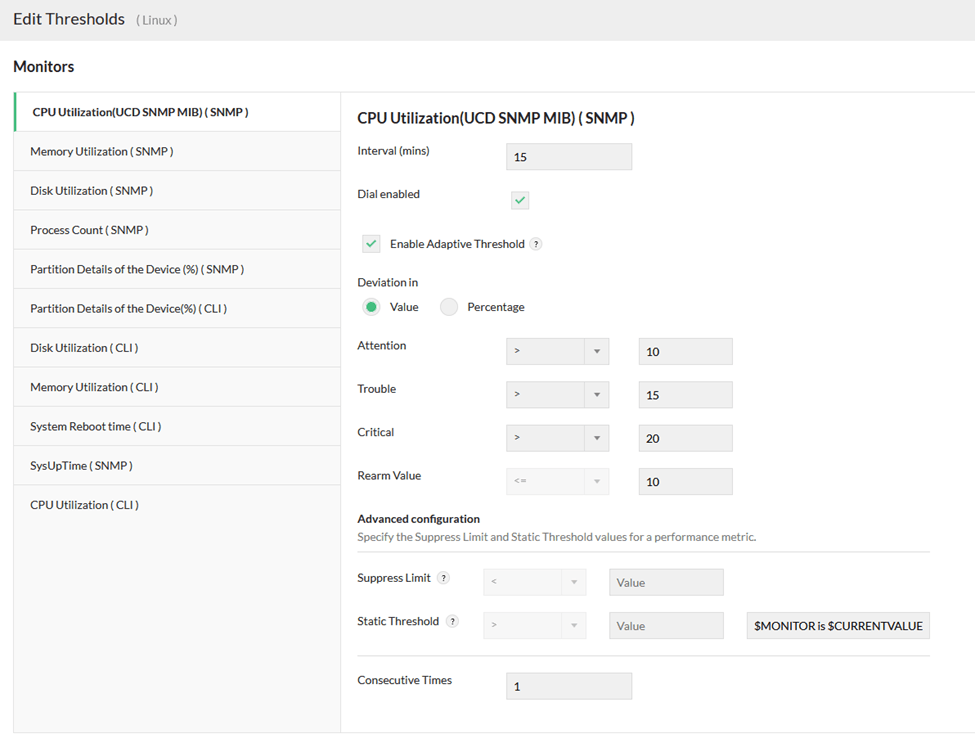
- For each template, document threshold values and severity levels (warning/critical) for CPU, memory, disk and interfaces.
- Done when: You have a per-template inventory of monitors + thresholds that covers all device classes you intend to migrate.
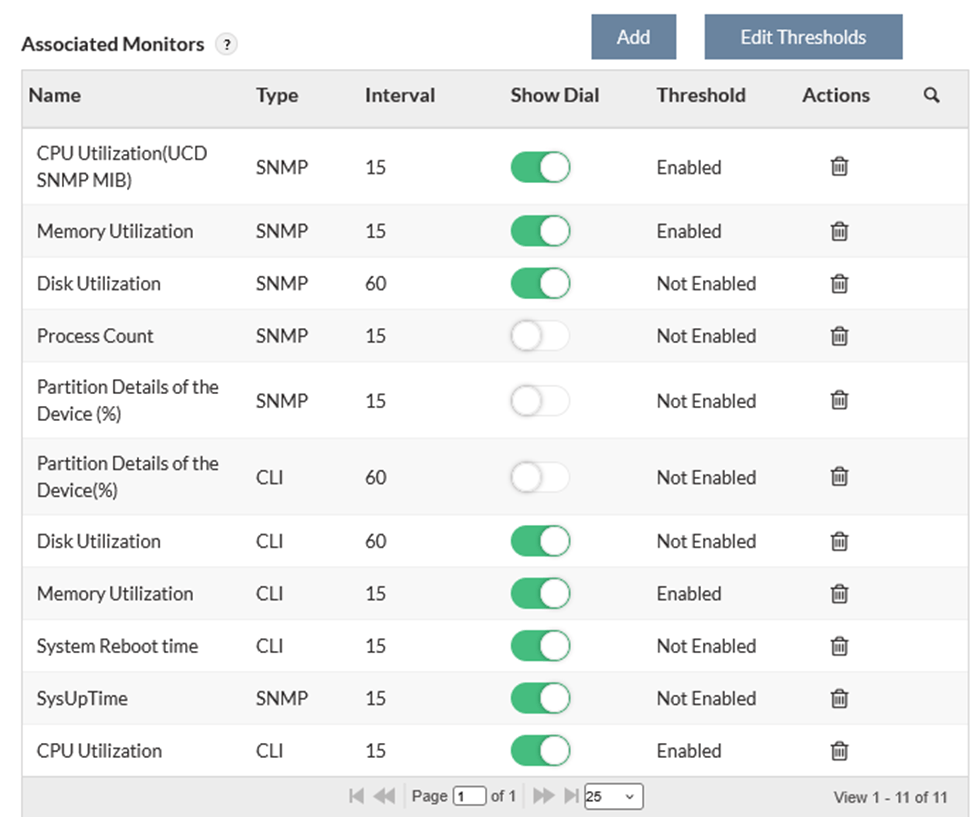
Then review and document the template’s threshold configuration.
WhatsUp Gold method:
- Create or adjust Device Roles to apply the right Active Monitors and Performance Monitors per device class.
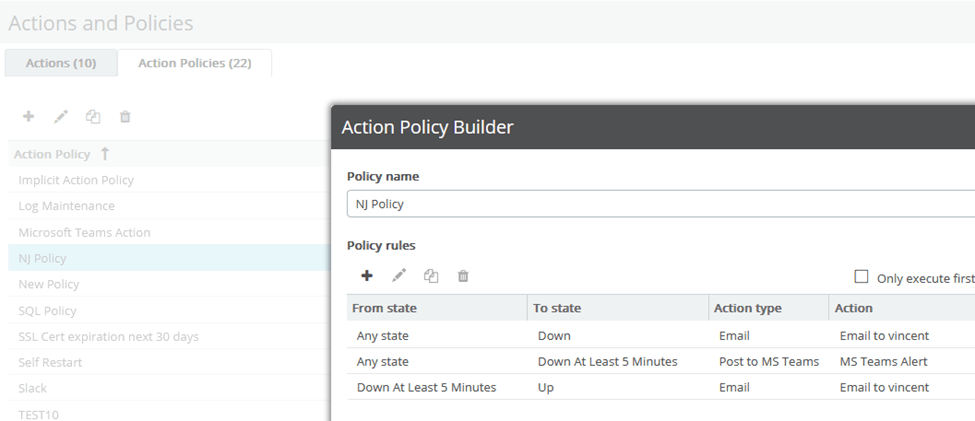
- Build Action Policies for state changes (device/interface/service down) and assign them at the device or Active Monitor level.
- Create Alert Center Notification Policies for performance thresholds and align them to your documented warning/critical values.
- Done when: A test device in each role triggers (a) a state-change alert and (b) a threshold alert using the expected escalation path.
- Active Monitors → State-based alerts via Action Policies
- Performance Monitors → Thresholding via Alert Center policies
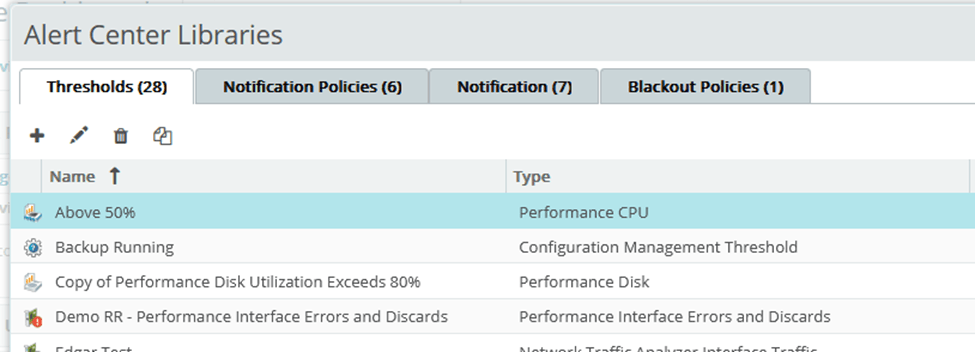
Migration best practice: For each documented OpManager threshold, create a corresponding Alert Center threshold in WhatsUp Gold so alert volume and severity remain consistent.
Step 3 — Rebuild Your Notification/Escalation Logic
- Export OpManager Notification Profiles and list the trigger criteria (device down, interface down, URL down, threshold breaches) and recipients.
- In the WhatsUp Gold solution, recreate state-based notifications as Action Policies and performance-based notifications as Alert Center Notification Policies.
- Assign Action Policies at the device or Active Monitor level, then run a controlled test alert to confirm escalation order and timing.
- Done when: Each critical OpManager notification path has a WhatsUp Gold equivalent, and test alerts reach the expected destination within the expected timeframe.
OpManager | WhatsUp Gold |
Notification Profiles | Action and Action Policies |
Profile criteria (device down, threshold, URL down, interfaces) | State changes (Active Monitors) + perf threshold rules (Alert Center). Action policies can be assigned to a Device or Active Monitor. |
Email/SMS/Webhook/Ticket | Same — email, SMS, scripts, webhooks |
Verify: Compare alert volume and destinations for one representative outage and one representative threshold breach.
Step 4 — Recreate Maps and Service Dependencies
- Identify OpManager Business Views that represent business-critical service chains and capture screenshots, devices and link logic.
- Rebuild those views in WhatsUp Gold using Custom Maps (or dashboards where appropriate), adding icons, annotations and state indicators.
- Verify link/indicator behavior on a small subset (for example, a core router and two downstream devices) before scaling up.
- Done when: Your highest-priority service chain maps are recreated and accurately reflect device/monitor states during a test outage.
- WhatsUp Gold Map View provides topology mapping with customizable icons, L2 insights and annotations. You can use the same canvas and customize them.
Note: If a view is purely status-oriented (not dependency-oriented), consider implementing it as a WhatsUp Gold dashboard instead of a map.
Step 5 — Rebuild Dashboards and NOC Displays
- Recreate your key operational views as WhatsUp Gold dashboards using drag-and-drop reports (availability, top talkers, interface health, critical alerts).
- Build NOC Viewer slide decks for wallboards and define rotation, full-screen behavior and per-slide refresh expectations.
- Validate the dashboards against OpManager for one agreed baseline period (for example, 24 hours) to confirm comparable visibility.
- Done when: NOC dashboards and wallboards show the required KPIs, update reliably and are accepted by operations for daily use.
- Create rotating wallboard slide decks using NOC Viewer.
Verify: Confirm dashboard widgets and wallboards render correctly on the target display hardware/resolution used in the NOC.
Step 6 — Verify Discovery and Credential Behavior
OpManager:
- Uses SNMP/SSH/WMI credentials in the Discovery Wizard.
WhatsUp Gold:
- Uses Credentials Library; richer credential sets return better performance/role assignments. You may use SNMP, SSH, WMI, ADO, Telnet, VMware, AWS, Azure, REST API, Redfish and others.
Verify:
- Recreate all SNMP/WMI/SSH credentials in the WUG Credentials Library and assign them to the correct discovery profiles.
- Match OpManager’s discovery scope (IP ranges, AD imports, and seed routers) so you discover the same estate.
- If specific devices cannot be discovered automatically, import them (REST API/PowerShell) and run discovery against the imported list.
- Done when: Discovery completes with expected device counts, correct Device Role assignment for a spot-check sample, and successful credential-based polling (SNMP/WMI/SSH) on those devices.
What to Expect After Migrating
Improved Alerting Transparency
The WhatsUp Gold separation of state-based vs. threshold-based notifications reduces false positives and makes escalations clearer.
Better NOC / Operations Visibility
The NOC Viewer provides rotating dashboards, ideal for 24/7 operations centers.
Cleaner Device Role Assignments
WhatsUp Gold device roles handle classification cleanly and are easy to modify — a major advantage over complex Device Template logic.
More Powerful Topology Visualizations
WhatsUp Gold Map View supports annotations, link indicators and L2 visibility.
Migration Checklist
Please check if you have captured outputs of the OpManager configuration so you will be able to recreate the same in WhatsUp Gold. You might need to do many screenshots or copy those to some document or spreadsheet. If you followed the previous steps you should have everything.
- Export all OpManager device lists
- Document Device Templates + thresholds
- Review Interface Template thresholds
- Export Notification Profiles
- Export Business Views (screenshots help)
- Recreate credentials in WUG
- Run discovery and validate device roles
- Recreate thresholds in Alert Center
- Build Action Policies (state-based)
- Recreate dashboards + NOC Views
- Validate alarms and notifications
API script
This PowerShell script (tested with versions 7 and 5.1) uses the OpManager REST API to retrieve devices and the WhatsUp Gold PowerShell module to import them into WhatsUp Gold. It runs discovery against the imported device list, using credentials already configured in the WhatsUp Gold Credentials Library; migrate credentials first to improve discovery results.
Conclusion
Transitioning from OpManager to WhatsUp Gold isn’t just an upgrade—it’s a strategic leap forward for your network management operations. While both platforms are robust, WhatsUp Gold stands out as the superior choice, delivering:
- Exceptionally intuitive and customizable escalation policies that minimize response times and enhance incident resolution
- Advanced, interactive dashboards that provide deeper insights and actionable intelligence
- Dynamic NOC Viewer wallboards for real-time, at-a-glance monitoring of critical infrastructure
- Efficient, ready-to-use device templates that accelerate onboarding and standardize configurations
- Industry-leading mapping and topology tools that offer unparalleled network visibility and control
By embracing a structured migration to WhatsUp Gold, you empower your team with cutting-edge tools and workflows, ensuring a seamless transition and establishing a foundation for sustained operational excellence and future growth.
